
- Why traditional Gmail filters fail and what AI does differently
- The core building blocks of an AI-powered Gmail workflow
- Four real-world automation examples you can copy right now
- A simple step-by-step process to build your first AI Gmail automation
- Advanced strategies like sentiment analysis and CRM integration
- Why Your Current Gmail Workflow is Broken (and Why AI is the Fix)
- The Core Components of an AI-Powered Gmail Workflow
- Practical AI Workflows: Real-World Examples for Your Inbox
- Setting Up Your First AI Gmail Automation: A Step-by-Step Guide
- Beyond the Basics: Advanced AI Strategies for Gmail Mastery
Your inbox is out of control. We know it. You know it. That feeling of opening Gmail and seeing 200 unread emails before 9am? That is not a productivity problem. That is a systems problem.
The good news: you can fix it. Automating Gmail with AI workflows means letting software handle the sorting, summarizing, flagging, and responding, so you only touch emails that actually need you. No more manual tagging. No more copy-pasting into spreadsheets. No more missed follow-ups.
At GrowthSpike, we have helped teams cut their daily email time in half using AI workflows built on tools they already have. This is not theory. It works, and it is easier to start than you think.
In this post, we break down exactly how AI-powered Gmail automation works, what tools you need, and how to build your first workflow today. Whether you are a solo founder or running a team, this will change how you think about your inbox.
Why Your Current Gmail Workflow is Broken (and Why AI is the Fix)
Be honest with yourself. How do you actually manage your inbox right now?
You probably scroll, skim, star a few things, forget about them, and then panic when someone follows up. Maybe you have a handful of filters set up from 2019 that half-work. Maybe you have a "system" that falls apart every time you get busy.
That is the reality for most people. And it is costing you more than you think.
The problem with traditional filters
Gmail's built-in filters are rigid. They work on exact match logic. If an email contains the word "invoice," move it to this folder. Fine. But what happens when the invoice email says "please find attached" with no obvious keyword? The filter misses it.
Filters cannot read context. They cannot tell the difference between an angry client and a happy one. They do not know that an email from a new sender is actually a hot lead. They just match patterns, and the real world does not work in neat patterns.
What AI does differently
AI reads emails the way a smart assistant would. It understands meaning, not just keywords. It can tell that "we need to talk" from your biggest client is urgent, even if it arrives at 11pm with no subject line.
Here is what AI can handle that filters never could:
- Identifying urgency based on tone and sender history
- Categorizing emails that do not fit a predictable template
- Flagging follow-ups you are about to miss
- Summarizing long threads into two sentences
- Spotting potential leads buried in cold outreach
The real cost of a broken workflow
McKinsey found that workers spend an average of 2.6 hours per day on email. That is 13 hours a week. Think about what you could do with even half of that time back.
A broken email workflow creates stress, slows your response time, and means opportunities slip through the cracks. AI is not a nice-to-have here. It is the fix your workflow actually needs.
The Core Components of an AI-Powered Gmail Workflow
Before you build anything, you need to understand the parts. AI Gmail automation is not one single tool. It is a stack of pieces that work together.
Here is how we break it down.
1. The AI brain
This is the part that reads, understands, and makes decisions. Tools like OpenAI's GPT models, Claude, or purpose-built AI agents act as the intelligence layer. You feed them an email, and they can summarize it, classify it, extract data from it, or draft a reply.
Think of this as your smartest team member, available 24/7, who never gets tired of reading emails.
2. The automation platform
AI alone cannot connect Gmail to your other tools. That is where platforms like Zapier, Make.com (formerly Integromat), or n8n come in. These are the pipes that move data between apps.
They watch Gmail for new events, pass the email content to your AI tool, and then carry out whatever action the AI recommends. No code required for most setups. We offer this through GrowthSpike AI Automation.
3. Triggers
A trigger is what starts the workflow. Common Gmail triggers include:
- A new email arrives in your inbox
- An email from a specific sender lands
- An email is labeled or starred
- An email contains an attachment
Triggers are the "if" in your "if this, then that" logic.
4. Actions
Actions are what happen after the trigger fires. Examples:
- Label the email as High Priority
- Forward it to a teammate
- Create a task in Asana or Notion
- Log data to a Google Sheet
- Draft and send a reply
A simple example to make it click
New email arrives from a client (trigger). The AI reads it and detects it is a billing question. It extracts the invoice number and the client's name. Then it logs those details to your accounting sheet and drafts a reply with the relevant invoice attached. You review and hit send.
Total time you spent: 10 seconds.
That is the power of connecting a trigger, an AI action, and a follow-up action into one clean workflow.
Practical AI Workflows: Real-World Examples for Your Inbox
Let us get specific. Here are four workflows we have built and tested. You can copy any of these., -
Workflow 1: Priority Inbox Triage
The problem: Important emails get buried under newsletters, notifications, and low-priority threads.
How it works: Every new email gets passed to an AI model. The AI scores it based on sender history, urgency keywords, and emotional tone. Emails that score above a set threshold get labeled "High Priority" and trigger a Slack notification to you.
Setup: Gmail trigger (new email) → Make.com → OpenAI API (score and classify) → Gmail action (apply label) → Slack action (send alert).
The win: You stop missing urgent emails. You also stop wasting time checking emails that do not matter., -
Workflow 2: Automated Meeting Scheduling
The problem: Back-and-forth scheduling emails eat up 20 minutes per meeting.
How it works: AI detects when an incoming email contains a meeting request. It extracts the proposed time, checks your Google Calendar for conflicts, and either confirms the time or drafts a reply with two alternative slots.
Setup: Gmail trigger (new email) → AI agent (detect meeting intent, extract time) → Google Calendar (check availability) → Gmail draft (write response).
The win: Scheduling becomes a one-touch process instead of a five-email thread., -
Workflow 3: Newsletter and Promotional Email Management
The problem: Newsletters pile up. You want to read them, but not right now, and they clog your inbox.
How it works: AI identifies newsletters and promotional emails by sender pattern and content type. It summarizes each one in two or three sentences, moves the original to a "Read Later" label, and logs the summary to a Notion database you review once a week.
Setup: Gmail trigger (new email) → AI (classify as newsletter, summarize) → Gmail action (label and archive) → Notion action (log summary).
The win: Your inbox stays clean. You still get the value from newsletters without the clutter., -
Workflow 4: Lead Qualification and Follow-Up
The problem: Potential leads email you, and they fall through the cracks because you are busy.
How it works: AI reads incoming emails and identifies signals that suggest a potential lead, things like questions about pricing, service inquiries, or referrals. It extracts the contact's name, company, and email address, adds them to your CRM (HubSpot, Pipedrive, etc.), and drafts a personalized first-touch reply for you to review.
Setup: Gmail trigger (new email) → AI (qualify lead, extract contact info) → CRM action (create contact) → Gmail draft (personalized reply).
The win: No lead gets ignored. Your response time drops to minutes, not days.
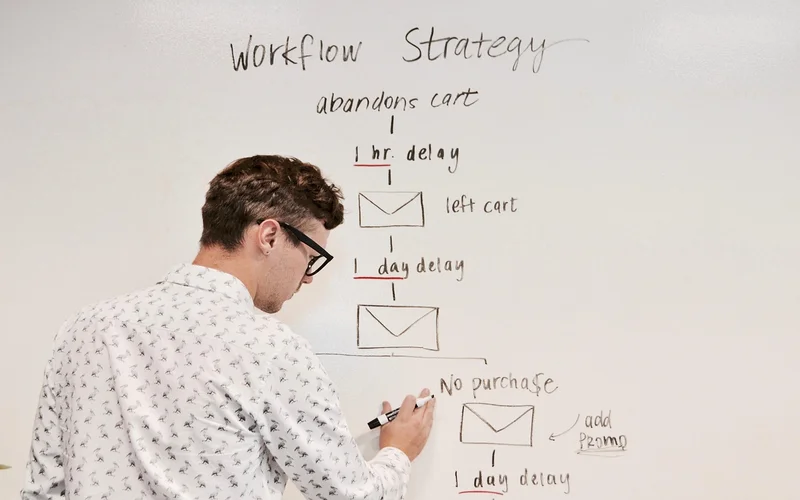
Setting Up Your First AI Gmail Automation: A Step-by-Step Guide
You do not need to be a developer to build this. Here is how to start, step by step.
Step 1: Pick one painful task
Do not try to automate your entire inbox on day one. Pick the one thing that annoys you most. Maybe it is sorting invoices. Maybe it is responding to the same FAQ five times a week. Maybe it is flagging emails from a specific client.
One task. That is your starting point.
Step 2: Choose your tools
For most people starting out, we recommend:
- Make.com or Zapier as your automation platform. Both have free tiers and pre-built Gmail integrations.
- OpenAI API for the AI layer. You can connect it directly through Make or Zapier without writing code.
- Your existing Gmail account. No special setup needed.
If you want a no-code AI agent, tools like Lindy.ai or Bardeen are worth exploring too.
Step 3: Define your trigger
In your automation platform, set up a Gmail trigger. For most beginner workflows, "New email in inbox" is the right starting point. You can refine it later with filters like "from a specific sender" or "contains an attachment."
Step 4: Define the AI action
Connect your AI tool. Write a clear prompt that tells it exactly what to do with the email content. Be specific.
Example prompt: "Read this email and determine if it is an invoice. If it is, extract the invoice number, sender name, and total amount. Return the result as JSON."
Vague prompts give vague results. Specific prompts give you data you can actually use.
Step 5: Define the follow-up action
Once the AI has done its job, tell the platform what to do with the output. Log it to a Google Sheet. Create a task. Send a Slack message. Draft a reply. This is where the real time savings happen. Learn more in our guide to Google workspace productivity automation.
Step 6: Test, then iterate
Run the workflow on a handful of real emails. Check the outputs. Fix anything that looks off. Then leave it running for a week and see how it performs.
Once it is working, you can build a second workflow. Then a third. That is how you end up with an inbox that basically runs itself. See also: Google Workspace blog.
Beyond the Basics: Advanced AI Strategies for Gmail Mastery
Once your first workflow is running smoothly, it is time to think bigger. Here is where things get genuinely exciting.
Custom AI agents for your business
Generic AI models are good. Custom-trained agents are better. You can fine-tune an AI model on your specific business context, your industry's language, your client protocols, your product names. The result is an AI that understands your emails the way a long-time employee would.
For example, a legal firm might train an agent to recognize case references and urgency levels specific to their practice. A SaaS company might train one to spot churn signals in support emails.
Sentiment analysis
This is one of our favorite use cases. AI can detect the emotional tone of an email and route it accordingly.
An angry message from a customer? Flag it immediately and alert your support lead. A glowing message from a happy client? Route it to your marketing team as a potential testimonial. A nervous email from a prospect who is close to signing? Ping your sales rep to follow up fast.
Sentiment analysis turns your inbox into an early warning system.
Multilingual email processing
If you work with international clients, AI removes the language barrier entirely. Incoming emails in French, Spanish, or Japanese can be automatically translated, summarized in English, and responded to in the original language, all without you touching a translation tool.
This used to require a dedicated team. Now it is a workflow.
Deep integration with your business stack
The most powerful setups connect Gmail AI workflows to everything else you use:
- CRM systems like HubSpot or Salesforce for automatic contact and deal updates
- Project management tools like Asana, Linear, or Notion for task creation from emails
- Marketing platforms for triggering sequences based on email responses
- Accounting software for logging invoices and payment confirmations automatically
When your inbox talks to your entire business stack, you stop doing data entry. You stop chasing information. Everything is where it needs to be, automatically.
The ceiling here is high. The workflows we have described are just the beginning. The teams that invest in building these systems now will have a serious edge over those still managing email manually.
- Traditional Gmail filters match patterns. AI understands context, which means far fewer missed or miscategorized emails.
- The core stack for AI Gmail automation is simple: a trigger in Gmail, an AI model to process the email, and an action in another tool.
- Workers spend an average of 2.6 hours per day on email. Even cutting that by 30% adds back hours every week.
- Start with one painful, repetitive email task. Build one workflow. Get it working before you expand.
- Advanced setups using sentiment analysis, custom AI agents, and CRM integration can turn your inbox into a fully automated business system.